
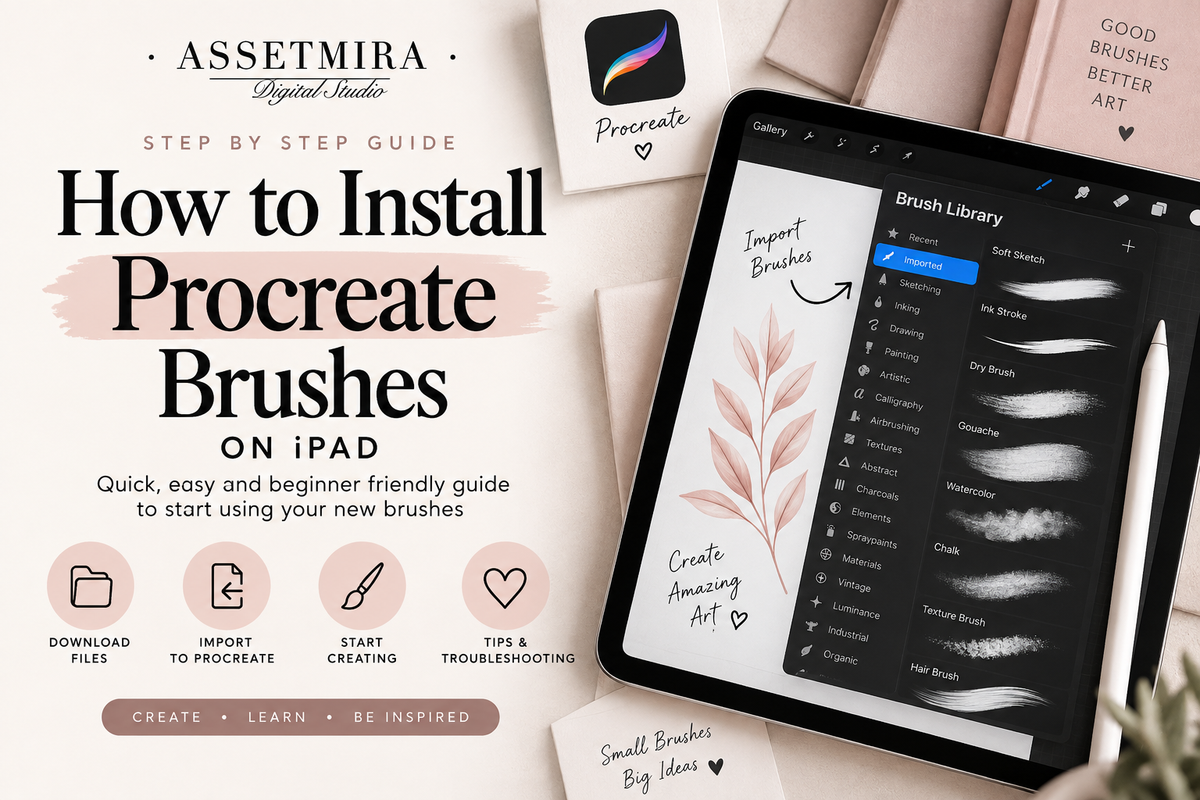
Installing a Procreate brush on iPad is usually quick once you know where the downloaded file is stored. The most common problems happen before Procreate even opens: the file is still inside a ZIP archive, the download is incomplete, or the user is trying to import a preview document instead of the actual brush asset.
Before you begin
Make sure Procreate is installed and that you can locate your download in the iPad Files app or the location used by your browser. If the product download includes a PDF with instructions or links, open that document first and follow the delivery instructions supplied with the product.
Installing a Procreate brush set
- Locate the downloaded brush-set file in Files.
- Tap the file or use the share/open options available on your device.
- Choose Procreate when prompted if it does not open automatically.
- Open the Brush Library in Procreate and confirm that the imported set appears.
A full brush set is usually added as its own group, which makes it easier to keep related brushes together.
Installing an individual brush
An individual Procreate brush can be imported in a similar way. After opening the brush file with Procreate, look for it in the Brush Library. If you plan to use several individual brushes together, create or use a dedicated brush set so they stay organized.
What if the download is a ZIP file?
Do not try to import the ZIP itself as a brush. In the Files app, extract the archive first, then open the folder it creates. Look for the actual brush, brush-set or included instruction file inside. Keep the original ZIP as a backup if you want a clean copy of the download.
Organize brushes immediately after importing
Brush libraries become difficult to navigate when every new purchase is imported without a system. Group brushes by function such as texture, shading, stamps, lettering, jewelry or inking. You can also keep a small “favorites” group for brushes used across many projects.
For a larger system covering fonts and PNG files too, read how to organize your digital design assets.
Common troubleshooting
The brush file does not open
Confirm that you extracted any ZIP archive and that you are opening the actual compatible brush file rather than a JPG preview or PDF instruction sheet. If the product lists a specific app requirement, confirm your setup matches it.
The brush imported but I cannot find it
Check the Brush Library carefully, including newly added sets. Individual imported brushes can be easy to miss if your library already contains many custom assets.
The brush looks different from the preview
Brush appearance can change with brush size, stylus pressure, canvas scale, layer effects and color choice. Test a few strokes on a clean canvas before deciding that the file is not working.
I downloaded the product but only see a PDF
Some digital products use a PDF as an instruction or delivery document. Read the document and follow the links or steps supplied by the seller. The product description should explain what files and delivery method are included.
Test new brushes before starting a client project
Create a quick test canvas and try thin strokes, thick strokes, different sizes and a few colors. For texture brushes, test them on both light and dark backgrounds. For stamp brushes, test scale and spacing. A two-minute test makes the brush much easier to use intentionally later.
Keep a backup of purchased brushes
Importing an asset into Procreate should not be your only copy. Keep the original download in an organized folder or backup location so you can restore it later if you change devices or reorganize your library.
Browse the AssetMira Procreate collection and see our guide to choosing brushes for texture, shading and illustration.
Frequently asked questions
Do I need to import every brush I purchase?
No. You can keep the complete pack in your archive and import only the sets you currently use.
Can I delete the downloaded file after import?
You can, but keeping an original backup is safer if you ever need to reinstall it.
Why does a stamp brush change size?
Brush size controls can affect the scale of stamped artwork. Test the intended size on your working canvas before committing to the final placement.


Comments
0 published · New comments are reviewed before appearingJoin the conversation
Your comment will be reviewed before it appears publicly.